


Now, you can display 8, 9, or 12 charts on a single screen, making it easier to track stocks, compare price movements, and spot developing setups all on our Advanced Charting tool.
This release continues something we've been focused on the entire year: your Elite subscription unlocks an endless array of tools across screening, live data, and cutting edge charting capabilities.
Introducing 8, 9, and 12 Chart Layouts
The latest update to our charting tool adds three new chart layouts:
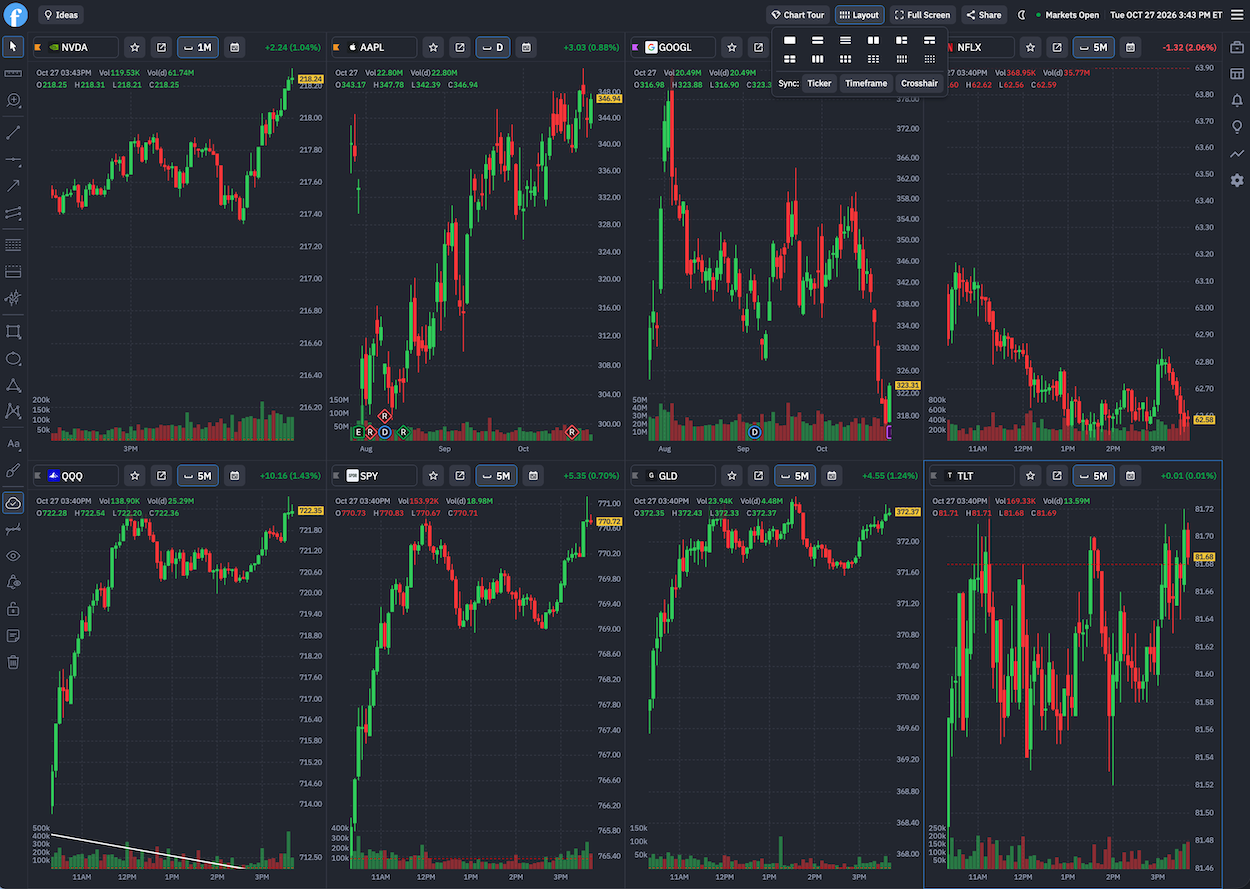
- 8 Charts (4×2): Four charts across two rows. A good choice if you want to follow several stocks while keeping each chart easy to read.
- 9 Charts (3×3): Nine charts arranged in three rows and three columns. This layout works well for comparing baskets of stocks or ETFs in a single view.
- 12 Charts (4×3): Four charts across three rows. You can keep up to 12 charts open and watch price movements across a large group of stocks to pair with your large monitor or trading desk.
All three layouts are available in the Layout menu at the top-right corner of Advanced Charts. In the screenshot below, you can see we're looking at a set of 4x2 charts while our charting layout menu is open at the top right:
Sync Your Charts
The Layout menu also includes three synchronization settings: Ticker, Timeframe, and Crosshair.
These settings let you control how your charts work together.
For example, you can sync tickers when checking the same stock across different charts. Crosshair sync makes it easier to compare specific points across charts without moving through each one separately.
Timeframe sync helps when you want to compare several stocks using the same chart period. In the screenshot below, we've synced every chart, the same example shown above, but now to a daily chart – we did this with a single click:
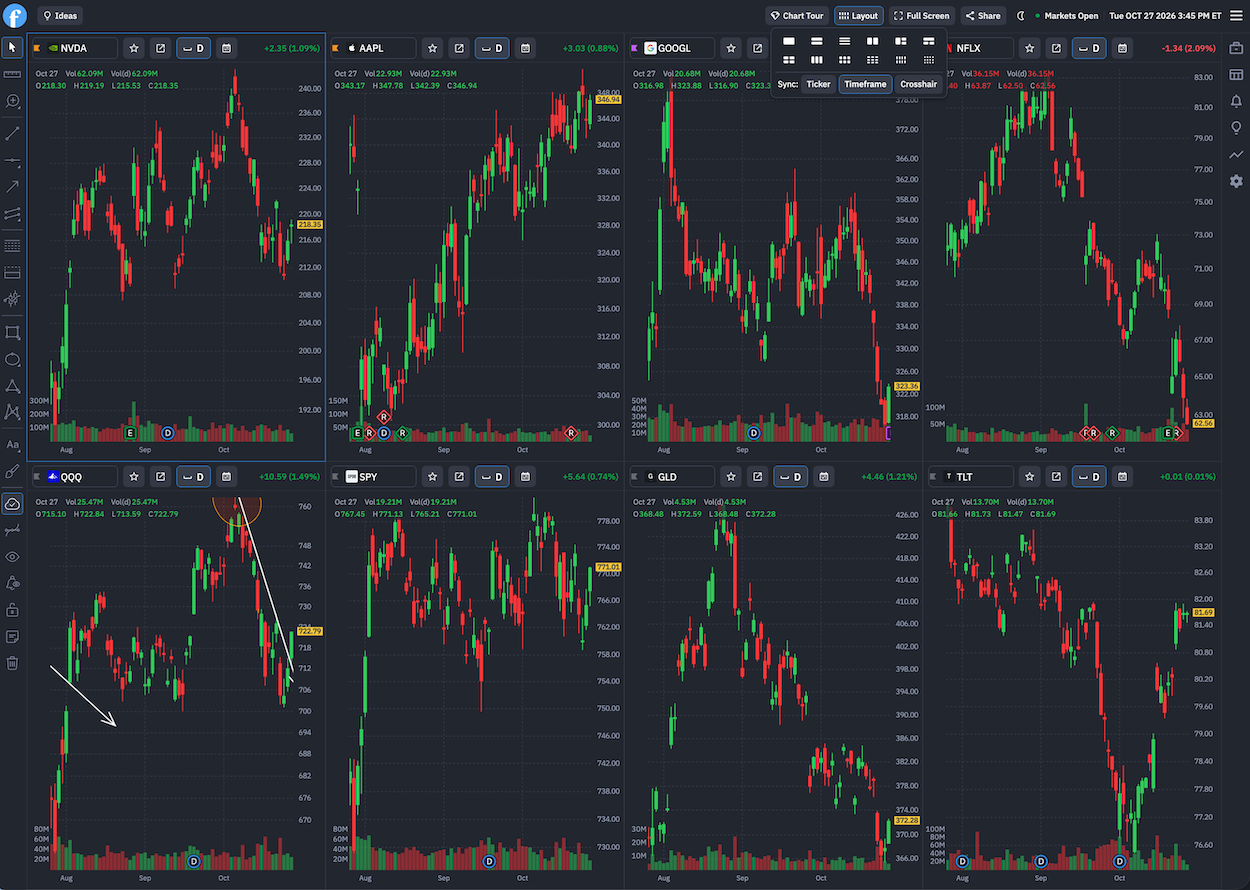
You can enable or disable each setting depending on what you're analyzing. Be sure to try each of them to get a feel for what's possible.
How to Use the New Layouts
To try the new layouts, open Finviz Advanced Charts and click Layout in the top-right corner.
Choose the number of charts you want to display. You can then select your tickers, change timeframes, and adjust the sync settings.
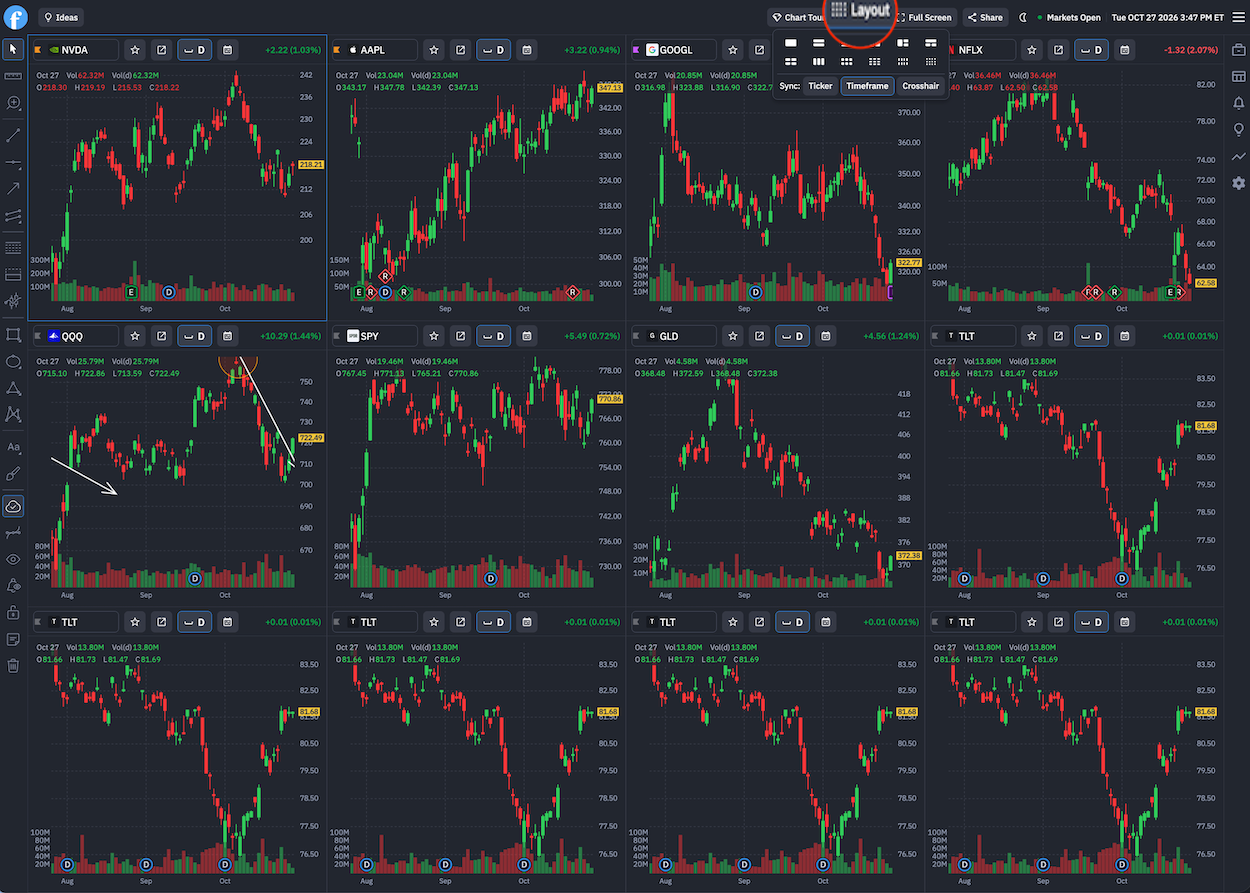
If you're working with a larger watchlist, the 12-chart layout lets you see more stocks at once. For a smaller group, the 8-chart or 9-chart layout may be easier to follow.
Try the New Chart Layouts
The three new layouts give you more control over how many charts appear on your screen.
Whether you're checking a few stocks or following a larger watchlist, you can choose a layout that suits your screen and the charts you need to monitor.
We look forward to seeing how traders use these new charting layouts!
The Finviz Team